Opera Mobile Emulator for Desktop
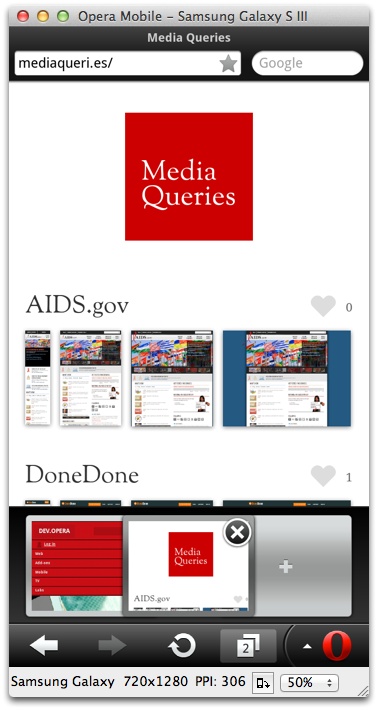
Introduction
Making sure that your site looks great and works exactly as it should in mobile and tablet browsers can often be a tedious process — you typically need one or more physical devices, or some form of virtual machine emulating the whole operating system, and that’s just the start.
Our Opera Mobile Emulator for Windows, Linux and Mac makes things a whole lot easier.
It’s a small, native application that’s easy to install on your desktop machine and runs exactly the same code as its mobile phone version — that way, you can be assured that what you’re seeing on your test environment is practically identical to the experience your end users will get.
The Profile Selector
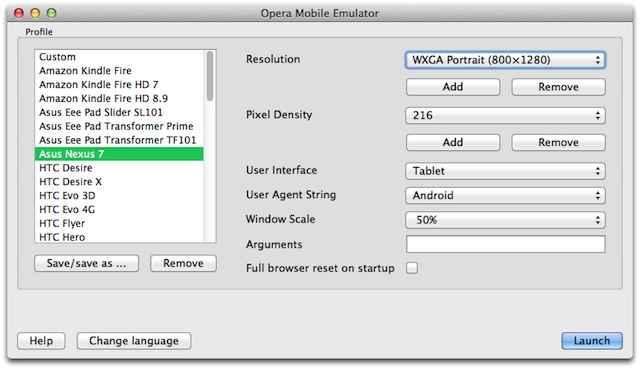
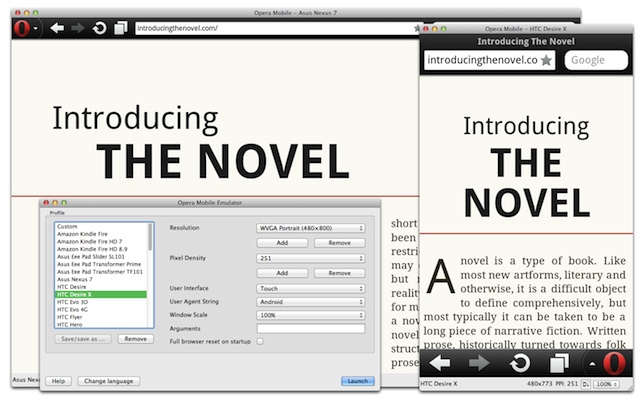
When you first open the Opera Mobile Emulator, you’re presented with the Profile Selector — see Figure 2. This Profile Selector allows you to spawn different instances of Opera Mobile on your desktop to accurately test different phone configurations, as seen in Figure 3. Here we will discuss the different options available in the Profile Selector.
Profiles
The Profile Selector comes preconfigured with a series of popular phone and tablet device profiles, such as Samsung Galaxy S III, Samsung Galaxy Tab 10.1 and HTC One X. You can then start an Opera Mobile instance using the selected profile by clicking on the Launch button.
If you want to create a new profile, select the Custom option from the profile list and set the relevant options for Resolution, Pixel Density, User Interface, User Agent String, Window Scale, and Arguments. When you’re all set, select the Add button under the profile selection box, choose a name for the new profile, and save it to the list. Note that you can also tweak existing profiles via the Save/save as… button appearing below the selected profile, or delete them using the Remove button.
Resolution
Mobile phones and tablets come in varying shapes and sizes. The screen resolution can be changed by choosing between the different options in the Resolution dropdown menu. You can also create your own custom resolutions using the Add button, and delete the existing ones using the Remove button.
Pixel Density
In the same manner as screen resolution, you can choose the pixel density — which affects Opera Mobile’s default zoom factor and devicePixelRatio — using the dropdown menu in the Pixel Density section. As above, you can select options from the menu, add your own custom ones, and remove options as you see fit.
User Interface
The User Interface section of the Profile Selector contains a dropdown menu with three options to choose from: Touch, Keypad and Tablet. The Touch option will give you our touch-screen phone UI, whereas choosing Keypad will result in our UI for phones with only keypad input. The Tablet option enables Opera Mobile’s tablet-optimized touch UI. To learn more about the differences between these UIs and input modes they trigger, see the input modes section below.
User Agent String
This option allows you to set a custom User Agent before launching an Opera Mobile instance. Available options are Default (Opera Mobi on Win/Mac/Linux), Android (Opera Mobi on Android), MeeGo (Opera Mobi on MeeGo), Desktop (Opera Desktop).
When running in tablet mode, the User Agent string is slightly different: Opera Mobi is replaced with Opera Tablet, so as to avoid that sites that use browser-sniffing send a mobile/small-screen optimised version to a large-screen tablet device.
If you need to set a totally custom UA string, then this can be done as well: launch Opera Mobile with any UA string setting, open opera:config, search for the Custom User-Agent property in the User Prefs section, give it your preferred UA string value and save. To revert to the default value, simply click the Default or Reset button.
Window Scale
Window Scale allows you to display the full browser window at a percentage of its original size. This is useful when the spawned Opera Mobile instance has a larger height than the height of your computer screen and you want to make it fit inside: e.g. the HTC One X profile triggers Opera Mobile to have a size of 720×1280px in portrait orientation, which is too tall to fit on my Dell monitor. The Profile Selector knows this and therefor launches the HTC One X Opera Mobile instance at 50% of its original size, while preserving the reported width, height, and devicePixelRatio values.
If you want to change the Window Scale value after launching, you can do this as well through the dropdown menu in the bottom right corner of the Opera Mobile instance.
Arguments
The Arguments field allows you to add various command line options to the Opera Mobile instance you’re launching. You can find an overview of the available arguments by clicking Help on the Profile Selector.
Some example arguments:
-displayzoom percentage: this allows you set any arbitrary window scale factor.-delaycorethread delay: this allows you to delay each message in the Presto thread by a certain amount of ms, so as to emulate a slow device.-url url: define a URL to open on startup.
Full browser reset on startup
Checking this box will reset all browser settings when Opera Mobile is launched, including cache, cookies, and so on.
Launching Opera Mobile instances from the command line
Depending on your workflow, you may want to start Opera Mobile instances from the command line, bypassing the Profile Selector. That is entirely possible, with various configuration options to boot. The most important ones are:
-displaysize widthxheight: set the window size-ppi ppi: set the pixel density you want to use-notouch: start Opera Mobile with Keypad UI-user-agent-string uastring: set the user agent option to the specified value. Options are: Default, Android, MeeGo, Desktop.-notouchwithtouchevents: same as-notouch, but it’s still possible to use the mouse for easier debugging-tabletui: switch to the tablet UI
Note: For a full list of command-line arguments, see the application’s help text with operamobile --help.
So, if we wanted to run Opera Mobile as a keypad device with an FWVGA-sized screen in portrait orientation, we’d use the following commands:
- On Windows:
OperaMobileEmu.exe -displaysize 854x480 -notouch - On Linux:
operamobile -displaysize 854x480 -notouch - On Mac:
Opera\ Mobile -displaysize 854x480 -notouch
The default location of the Opera Mobile Emulator’s executable will depend on your operating system. By default, you should find it here:
- Windows:
C:\Program Files\Opera Mobile Emulator\ - Linux:
/usr/bin/ - Mac:
/Applications/Opera Mobile Emulator.app/Contents/Resources/Opera Mobile.app/Contents/MacOS/
Input modes: touch, keypad and tablet
In the Touch and Tablet User Interface, you use the mouse as if it was a finger on an actual touch-screen device. A short click activates links and controls, double-click zooms in and out of a page, while clicking for more than a second (tap-and-hold) brings up the context menu. Scrolling is achieved by clicking and dragging.
Any text entry field (such as form elements in a web page, or the browser’s own address bar) will trigger an emulated on-screen keyboard, but you can of course use your regular keyboard for convenience. If you’d like to suppress the virtual keyboard (to simulate a mobile device with its own physical keyboard), use F6 to toggle it on/off.
Emulating pinch zoom is also possible: simply scroll the mouse-wheel while holding Ctrl (Windows and Linux) or Cmd (Mac). On Mac OS X 10.6 and above, you can even use the pinch zoom gesture on the trackpad.
In Keypad input mode, the primary controls are:
- Cursor keys can be used for spatial navigation around the Speed Dial, address bar and search field. On a web page, the cursor keys move the virtual mouse pointer.
F1andF2map to the top left and right soft keys, which activate the functions at the bottom of the screen.- Enter can be used to activate a control, zoom into the page, etc.
For your debugging convenience, the Keypad input mode comes with mouse interaction enabled by default (in other words, -notouchwithtouchevents is the default), allowing you to click on the different UI and page elements. If you prefer the emulator to just respond to keyboard input, you can add a -notouch argument when initiating an Opera Mobile instance from the Profile Selector.
In all input modes, Alt R is used to simulate a device rotation (or you can click the Rotate screen button in the info bar at the bottom), switching between portrait and landscape mode. F5 or Ctrl R on the other hand reload the current page.
Also note that in all modes you can perform select all, cut, copy and paste actions using the standard OS clipboard and shortcut keys. In addition, Ctrl E allows you to open the last string copied to the clipboard as a URL in a new tab. You can also use Tab and Shift Tab to navigate between form elements and Backspace to go to the previous page.
Features and settings of the browser
In general usage, Opera Mobile Emulator offers the same functionality available on mobile phones and tablets, including integration of Opera Turbo and Opera Link, which allows you to sync your bookmarks with our Opera Link servers and other Opera instances.
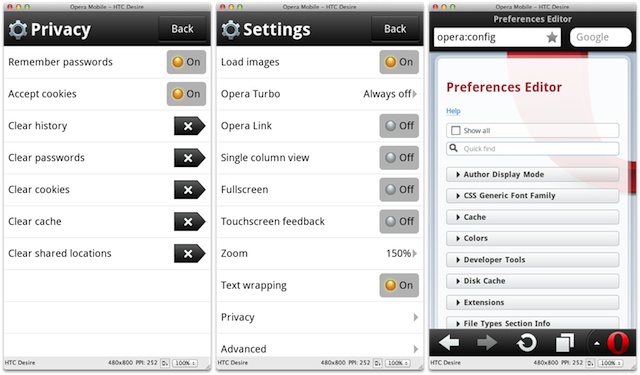
As with Opera Mobile running on devices, the Settings (Figure 4) give quick access to toggle various features and, under Privacy, to clear the history, passwords, cookies, cache and shared locations.
Power-users can enter opera:config into the address bar for complete access to all configuration options.
Remote debugging and browser automation
Using Opera Dragonfly’s remote debugging functionality, you can analyze and debug pages running in the Opera Mobile Emulator — see Figure 5.
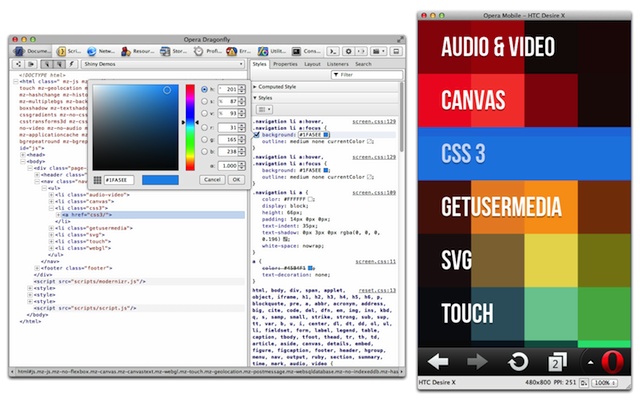
Setting this up is a simple three-step process, which is explained in great detail in our Opera Dragonfly documentation.
Opera Mobile Emulator 12.1 is also able to talk to our browser automation library, OperaDriver. OperaDriver is an implementation of the W3C WebDriver specification and part of the free software web testing framework Selenium. Selenium provides a lightweight and elegant way of testing web apps by emulating user interaction with actual web browsers. For details on how to use this, see our introducing mobile browser automation Labs article.
Conclusion
We hope that with this release of the Opera Mobile Emulator we’ve made it even easier to develop, optimize and debug on mobile and tablets. Happy developing!